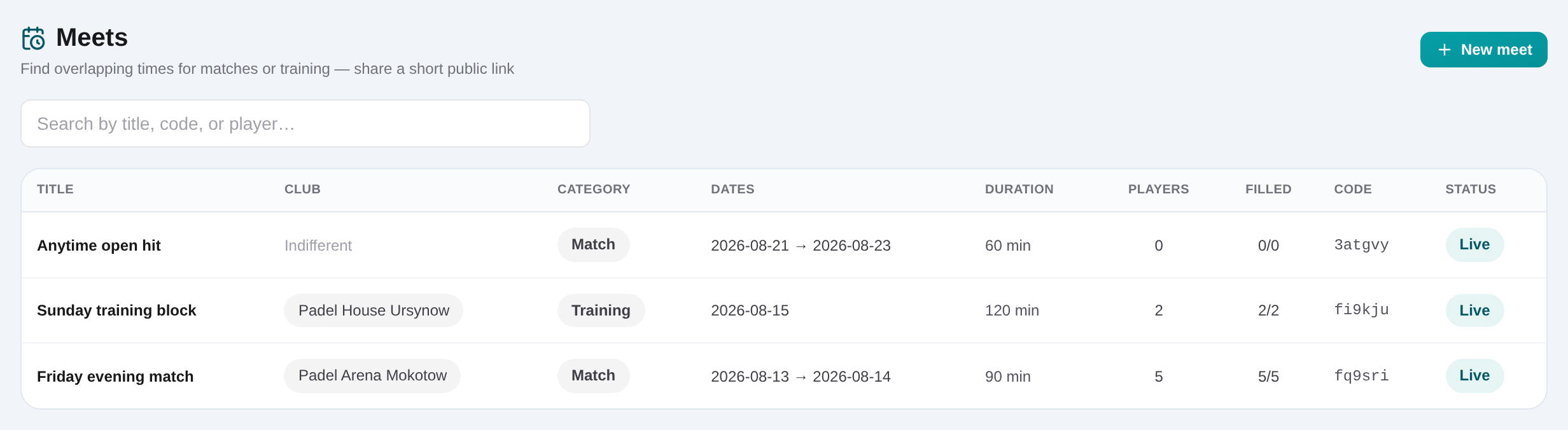
How to collect group availability
Open Dashboard → Meets and create a Match or Training meet. Choose the date window, duration, minimum players and optional club, then add participants from CRM search or as guest display names.
Open Dashboard → Meets
Review active requests first, then choose Add meet for a new group.
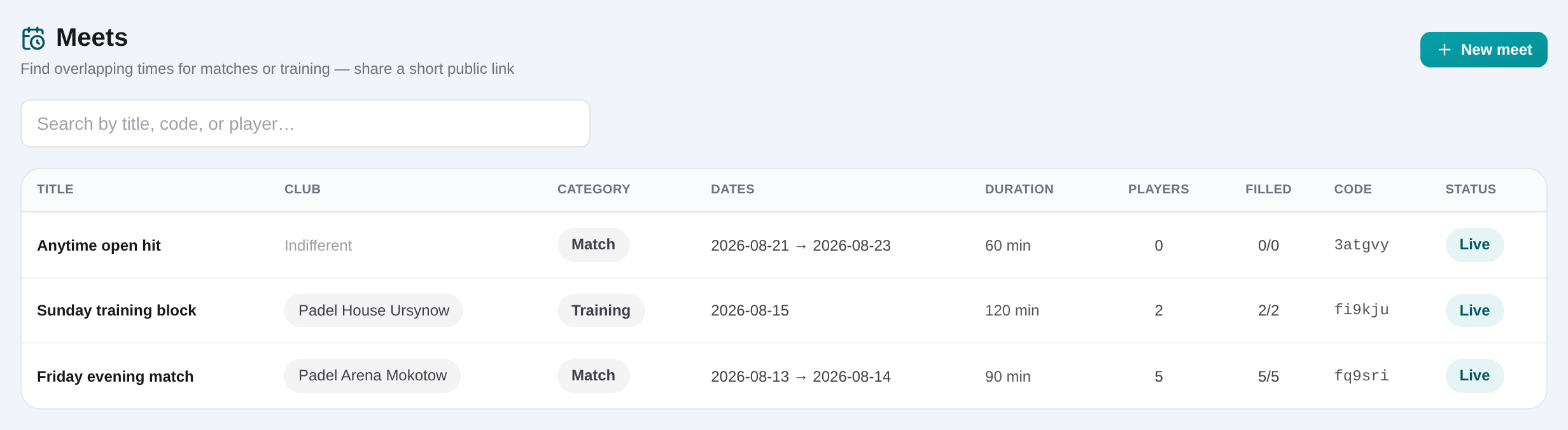
Choose Match or Training and name it
Enter a recognizable title, select the category and optionally attach the club.
Add at least four participants
Search CRM players by name or add guest display names. Check the list before sharing so every expected response has a row.
Set dates, duration and minimum players
Choose the start and end dates, select 60, 90 or 120 minutes, and set the minimum group size.
Save and copy the public link
After saving, copy the generated /meet/ link and send it to the group. Guests do not need an account.
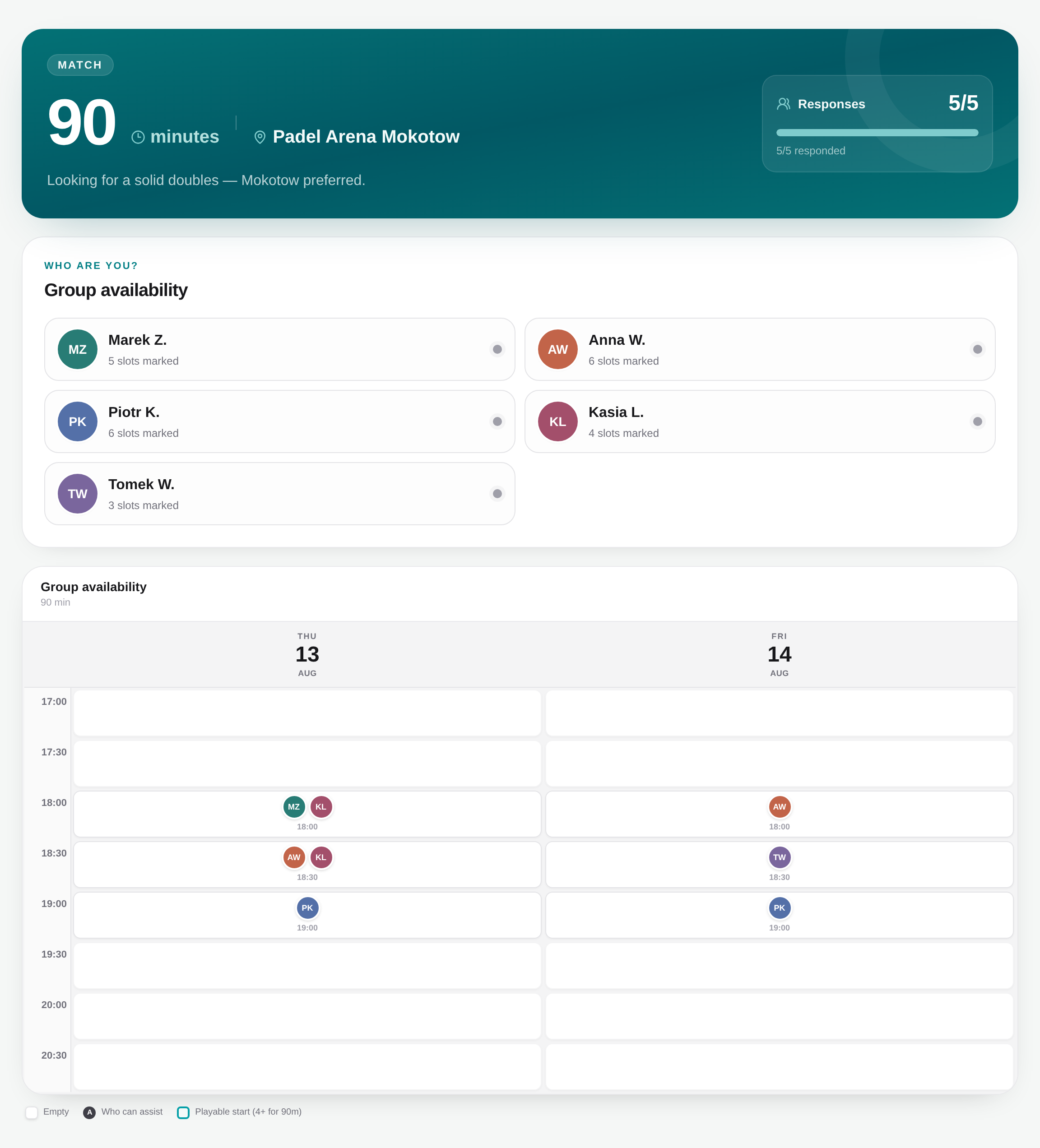
Let each guest mark available slots
Participants open the link and select times in the public grid. The dashboard tracks how many players have supplied slots.
Return to the meet and read overlap
Use the overlap preview to pick a continuous block that satisfies the configured session length and minimum player requirement.