Set up clubs and courts
Create the venue, add its optional Playtomic tenant ID, save, and then name each indoor and outdoor court.
Before you start
Have the club name, optional address, court names and indoor/outdoor classification. Obtain the tenant ID only for a Playtomic-connected venue.
What you will have
The club will appear in Dashboard → Clubs with a usable indoor and outdoor court inventory.
Tips
Use the court names staff already recognize. Add the club first because the court editor appears on the saved record.
Troubleshooting
If courts are not visible during tournament setup, return to the saved club and verify each court was added under the correct type.
Steps
Open Dashboard → Clubs
Review the venue list first so the same club is not created twice.
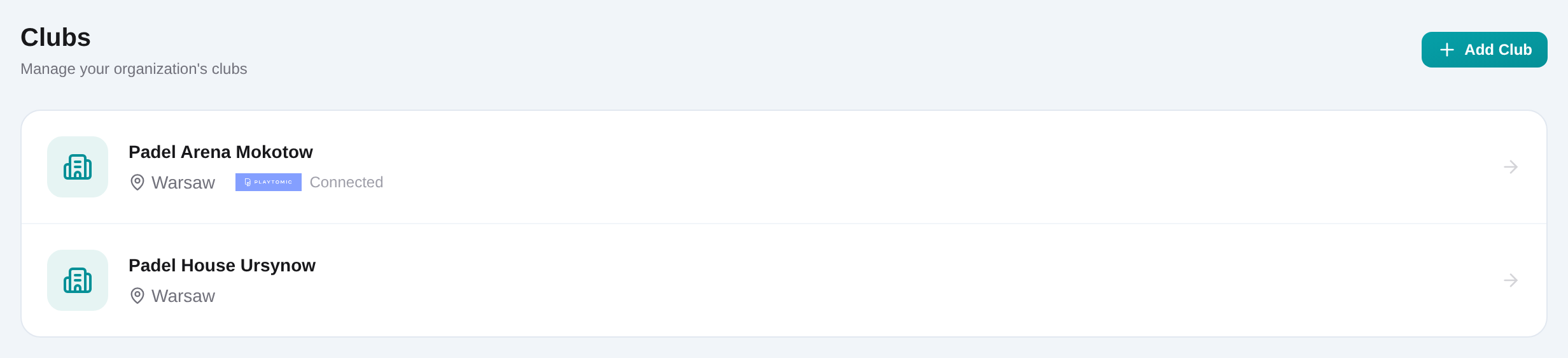
Choose Add club
Open /dashboard/clubs/new from the button in the page header or empty state.
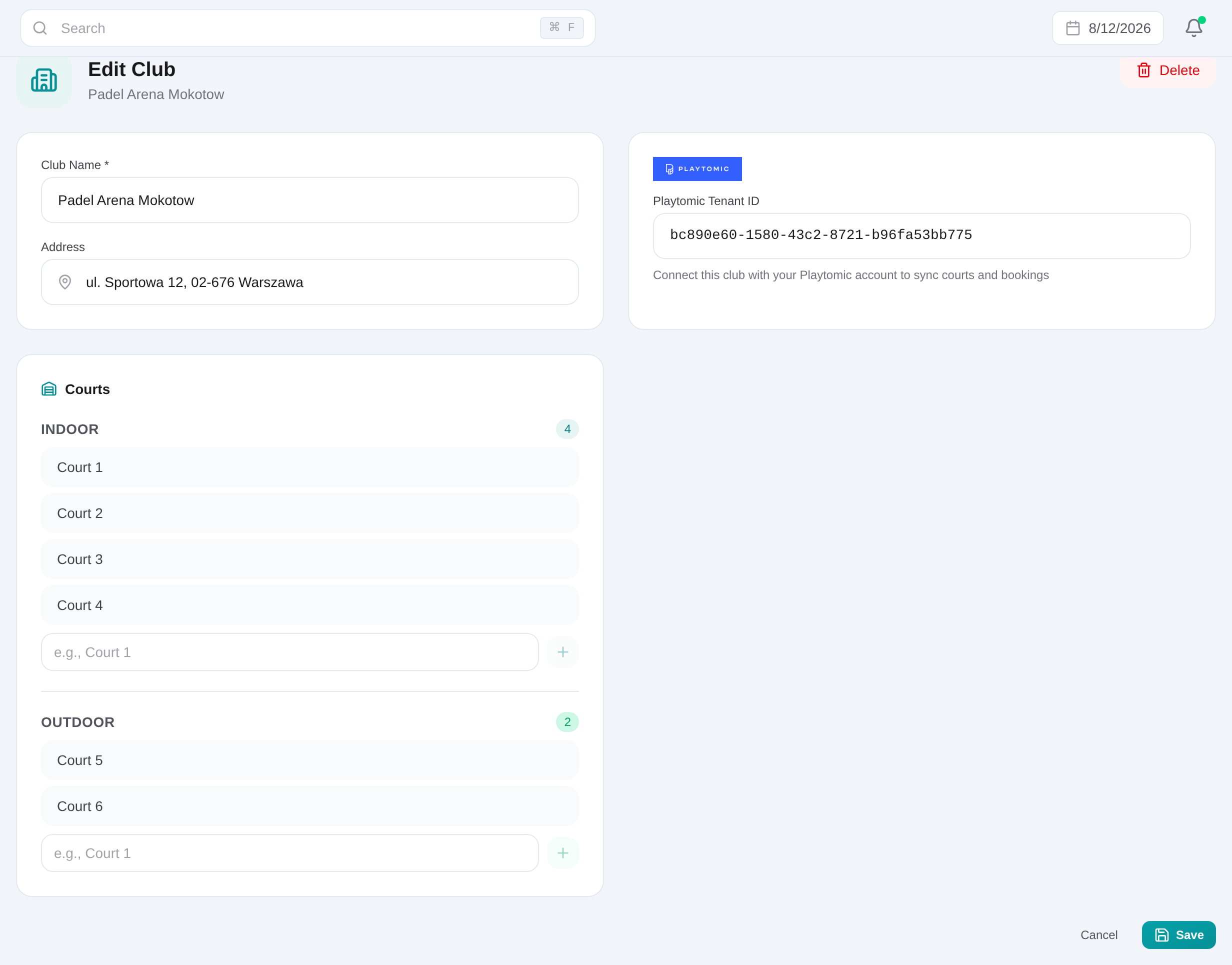
Enter the club name and address
Add the required name and optional address. Use the same venue naming your operators expect in tournament and academy selectors.
Add a Playtomic tenant ID when applicable
Enter the venue’s tenant ID only when the club will be used for Playtomic player sync or tournament booking retrieval.
Save the club record
Choose Save and wait for success. The court management panel is available after the club exists.
Add indoor and outdoor courts
Type each court name under the correct Indoor or Outdoor section and add it. Review counts and remove obsolete entries when the venue changes.
Set up clubs and courts
Create the venue, add its optional Playtomic tenant ID, save, and then name each indoor and outdoor court.
Get started